
※This article contains affiliate links, and we may earn a commission.
Are you wondering whether Insta360 GO Ultra’s interval Video (the feature that automatically records at set intervals) is safe to use while wearing it all day?
To get straight to the point: with interval Video enabled, the GO Ultra can be worn all day without worrying about the battery running out.
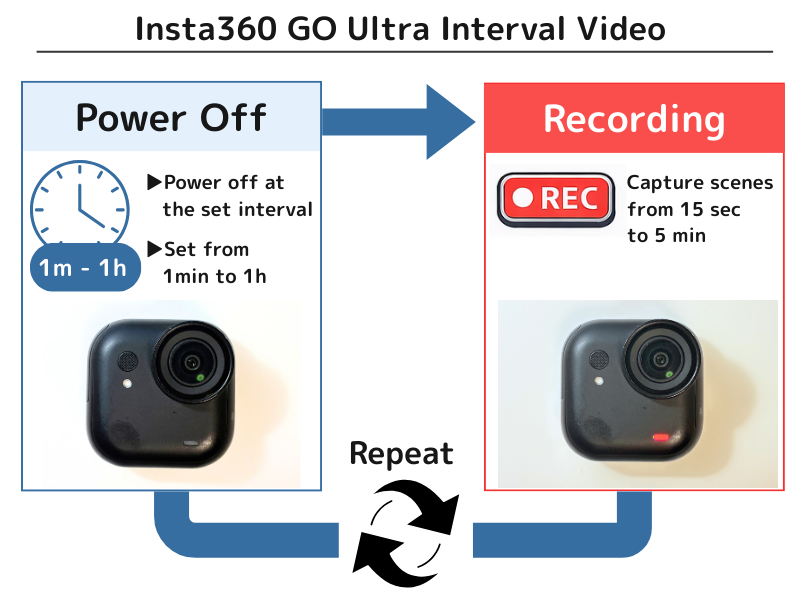
That’s because the camera only powers on at the moments it records, and stays fully powered off the rest of the time, minimizing unnecessary battery consumption.
In practice, I was able to use this setting without interruption even during long hikes and extended trekking sessions, walking continuously from morning until evening.
You can finely adjust the power-off (standby) time from 1 minute to 1 hour, and the recording duration from 15 seconds to 5 minutes, making it easy to tailor the setup to your daily routine.
If you haven’t purchased one yet, check the official store link below.
What Is Insta360 GO Ultra Interval Video?
Interval Video is a mode that automatically records at regular, preset intervals.
How Interval Video Works
With Insta360 GO Ultra’s interval Video, the camera automatically turns on at the set intervals and records only at the necessary moments.
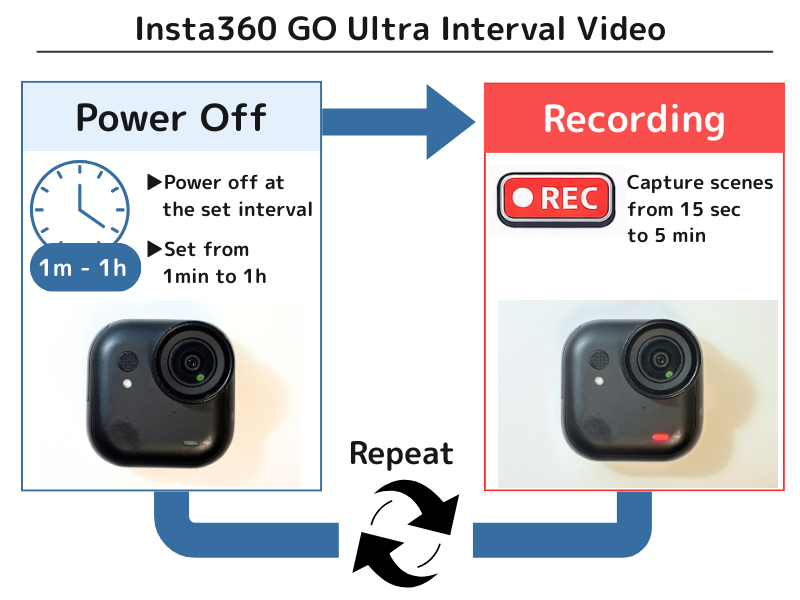
Instead of recording continuously, it alternates between recording and standby.
As a result, battery consumption is reduced, allowing the camera to last much longer even when carried around for extended periods.
Benefits of Interval Video
The biggest advantage of interval video is that you can wear the camera from morning to night and keep using it throughout the entire day.
When it’s not recording, the camera automatically powers off, reducing battery strain compared to continuous recording.
This makes it possible to create a natural, continuous Vlog that connects your entire day from the GO Ultra’s point of view.
If there’s a moment you don’t want to miss during interval recording, simply press the recording button on the camera to switch instantly to normal recording.
Most of the time, recording happens automatically—while important moments can be captured instantly when you want.
That’s what makes interval video such a convenient feature.
>>Insta360 GO Ultra Official Store
Why You Can Record All Day with Insta360 GO Ultra Interval Video
With interval video, the GO Ultra can effectively be used as if it’s worn all day.
When it’s time to record, the camera automatically powers on, and once recording ends, it powers off again.
Because no battery is consumed during standby, it’s a reliable option for carry-around, all-day shooting.
The GO Ultra camera body alone can record for about 1 hour continuously.
This means it has enough battery capacity to record a total of roughly 60 minutes of footage.
For example, if you set it to record for 1 minute every 10 minutes, battery usage would look like this:
Recording time per clip: 1 minute
Recordings per hour: 6
Total recording time per hour: 6 minutes
Since the GO Ultra can record about 60 minutes in total:
60 minutes ÷ 6 minutes = approx. 10 hours
With this setup, you can record for about 10 hours using interval recording.
That’s enough to set it up in the morning, go out for the day, and keep moving until evening without touching the camera.
>>Insta360 GO Ultra Official Store
Real-World Test: Using GO Ultra Interval Video on a Mountain Hike
I used GO Ultra’s interval video during a long mountain hike, walking from morning until evening.
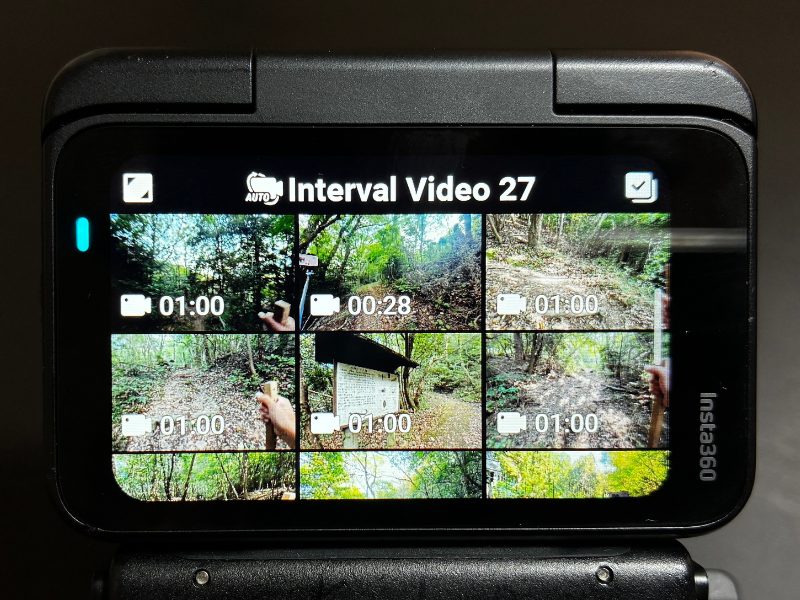
The setup was simple: I wore the magnetic pendant on my chest and attached the GO Ultra.
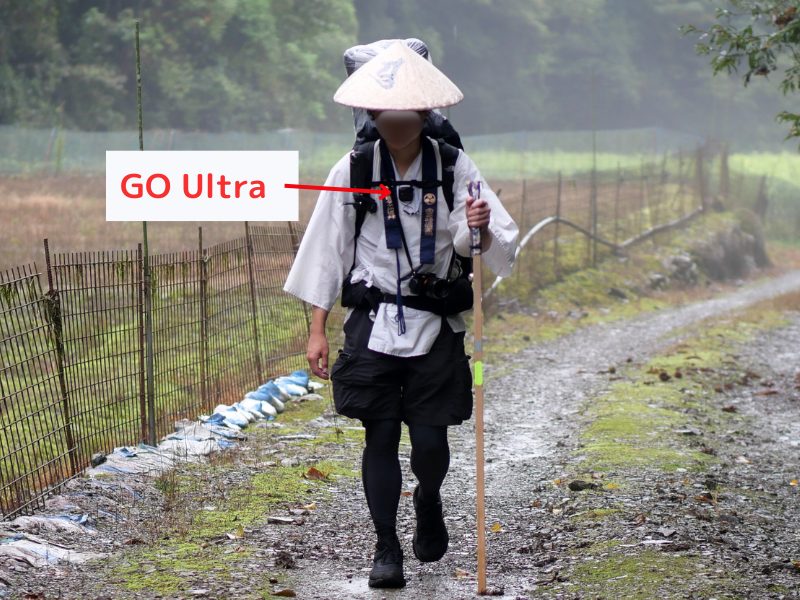
I tested it during a mountain section of the Shikoku Henro walking pilgrimage.
The battery never ran out, and it worked smoothly all the way until evening.
My walking route was regularly captured on video, and when I reviewed the footage later, the scenery and atmosphere of the day came back naturally.
Even when I was completely exhausted, if there was a moment I wanted to capture, I could just press the button on the GO Ultra attached to my chest.
There was no need to stop moving, and not worrying about missing shots was a huge relief.
Another advantage was that the total data size after recording was kept manageable, making editing much easier.
Since it worked flawlessly under these conditions, I felt that for everyday outings like city walks, the battery capacity would be more than sufficient.
>>Insta360 GO Ultra Official Store
How to Set Up Insta360 GO Ultra Interval Video
Setting up Interval Video is intuitive and easy, even for first-time users.
Selecting Interval Video
From the settings screen, choose “Interval Video.”
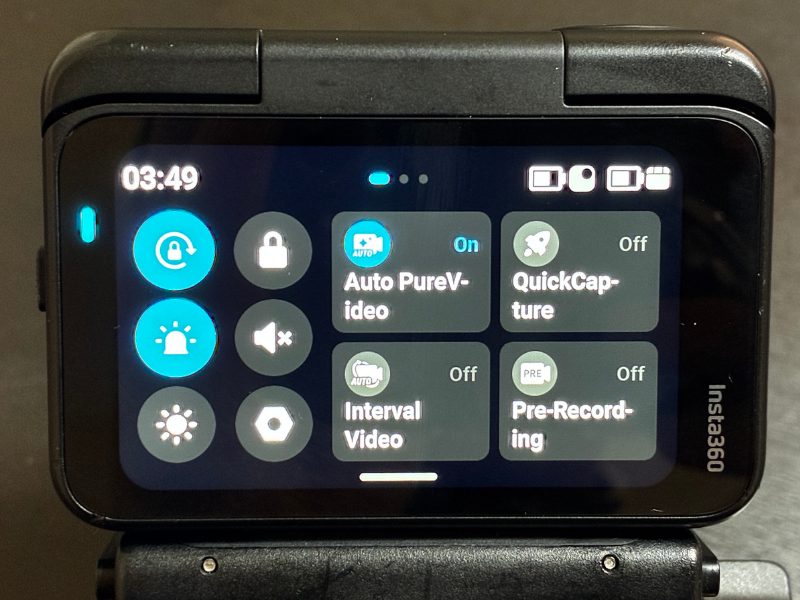
Choosing a Shooting Scenario
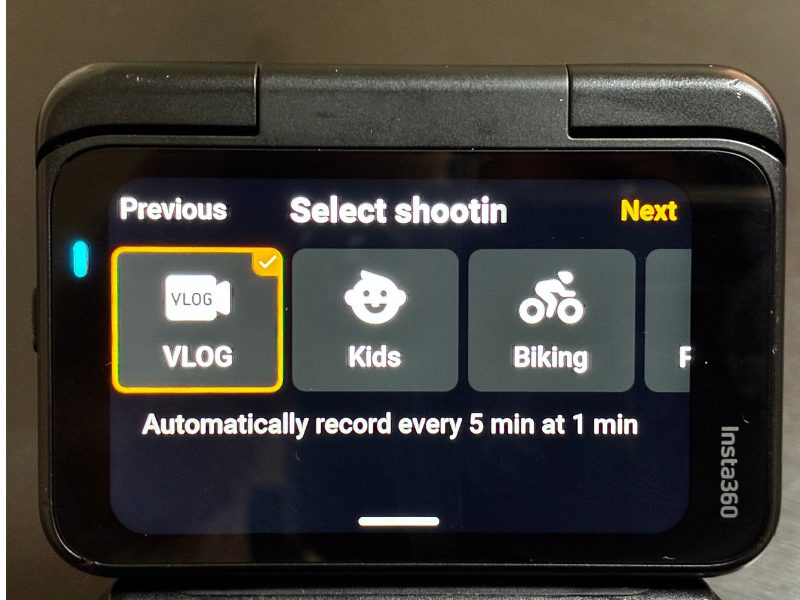
You’ll be prompted to select a shooting scenario. Choose the one closest to your shooting style from the following five options:
VLOG
Kids
Biking
Running
Custom
Setting Interval Time, Quality, and More
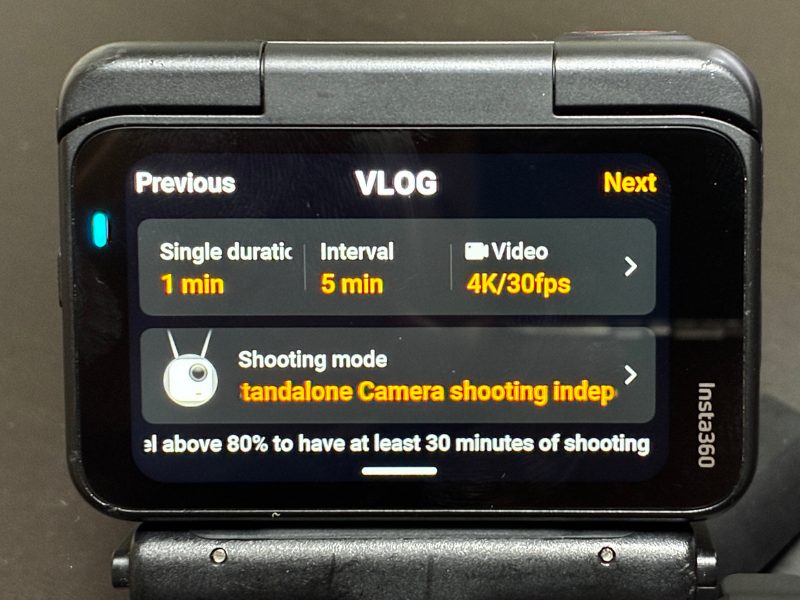
You’ll then enter the interval Video settings screen, where you can adjust the options you want.
Standby (Power-Off) Time
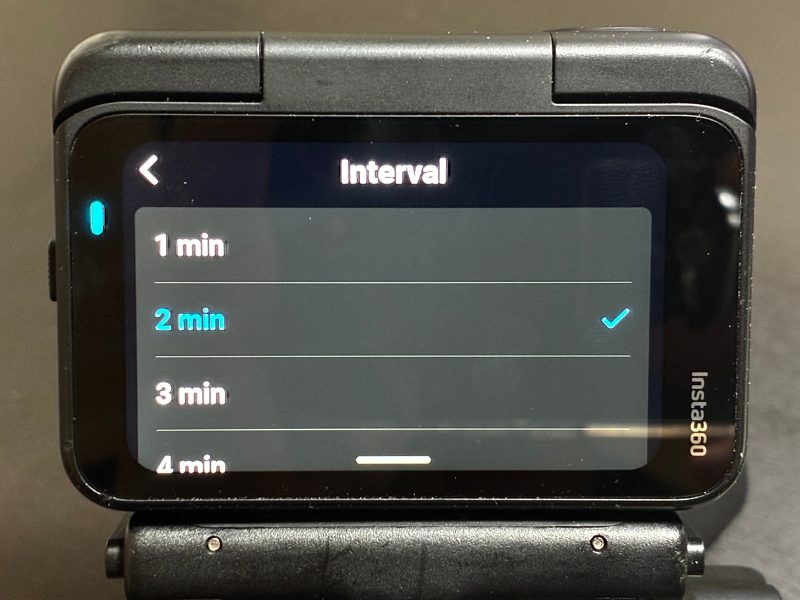
The power-off duration can be set very precisely.
You can choose from: 1, 2, 3, 4, 5, 6, 7, 8, 9, 10, 15, 20, 30, 45 minutes, or 1 hour.
Recording Duration
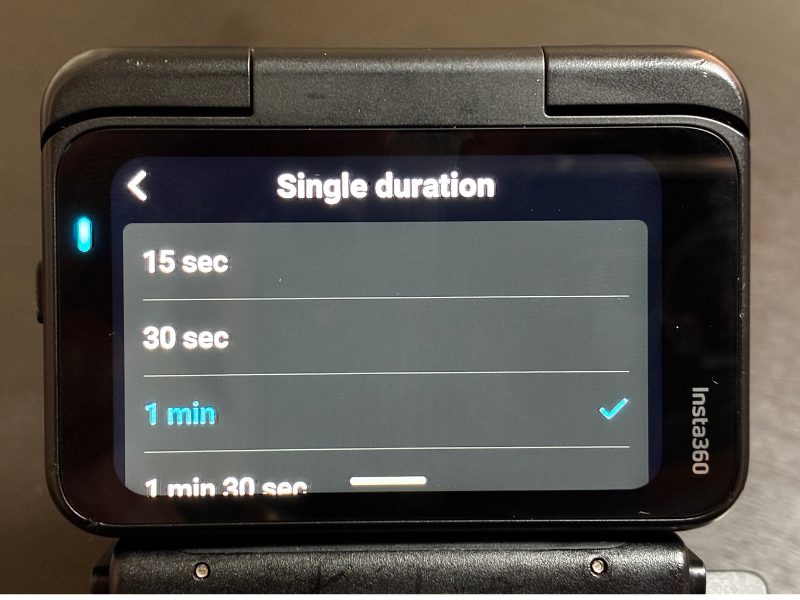
Recording time can also be finely adjusted.
You can choose from: 15 seconds, 30 seconds, 1 minute, 1 minute 30 seconds, 2 minutes, 2 minutes 30 seconds, 3 minutes, 4 minutes, or 5 minutes.
Video Quality
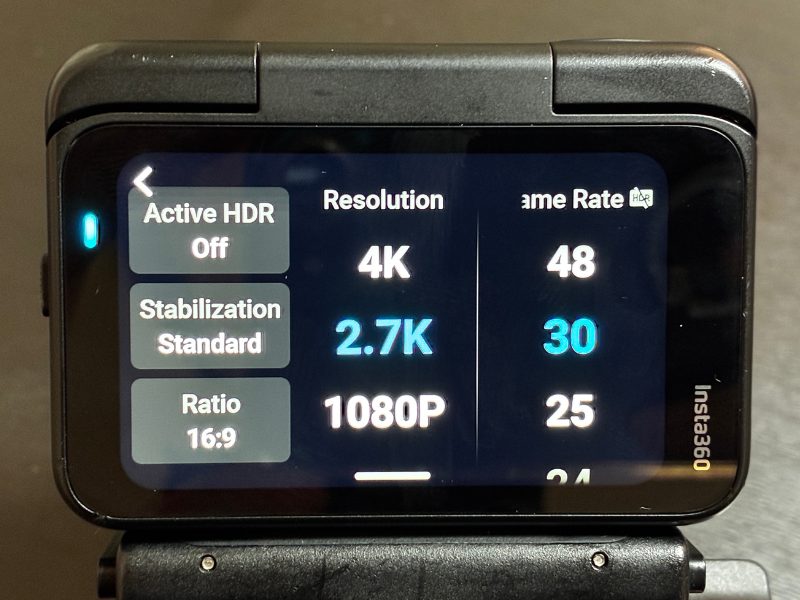
Just like normal video recording, you can choose the resolution from 1080p, 2.7K, or 4K, as well as the frame rate.
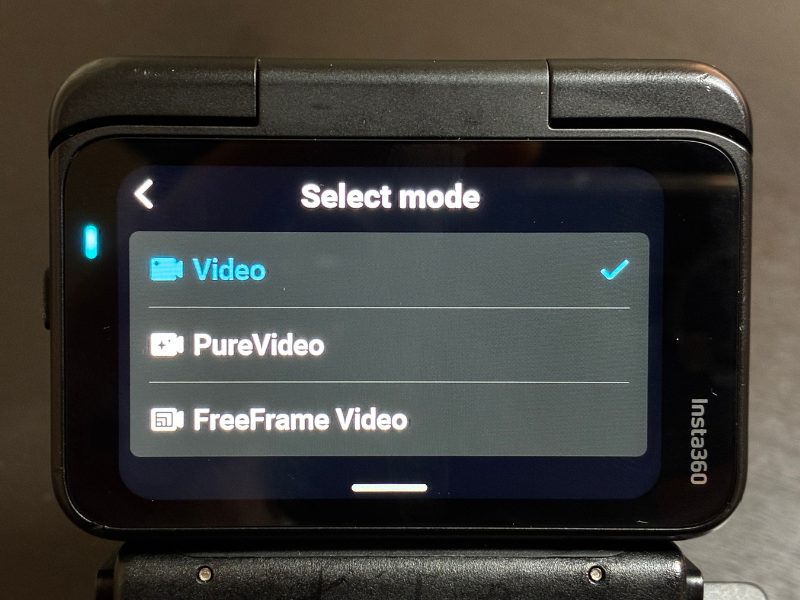
PureVideo can also be enabled.
Shooting Mode
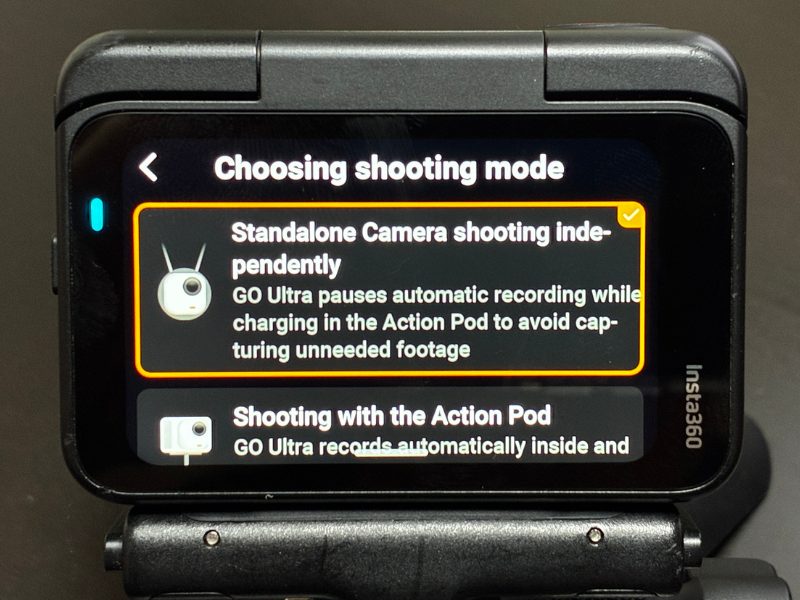
You can choose whether recording is enabled only when using the camera body alone, or only when it’s inside the Action Pod.
Before Starting Interval Recording
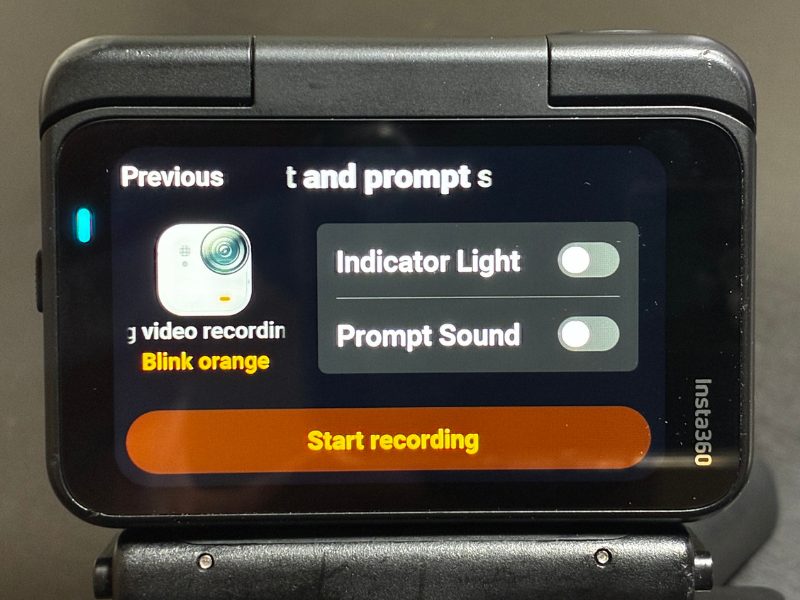
You can choose whether the red recording light turns on or off when recording starts, and whether a notification sound plays or not.
If you turn off both the red light and the sound, it won’t be obvious from the outside when recording is happening.
(You’ll still feel the vibration, so you’ll know when wearing it.)
Once you press “Start Recording,” interval recording begins immediately.
During Recording
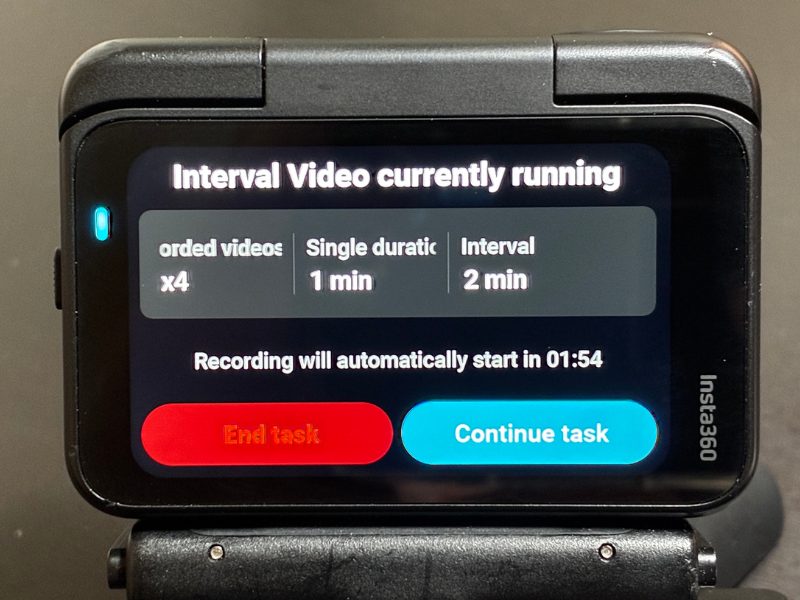
On the Action Pod preview screen during recording, a prompt appears that lets you switch to manual recording (so you can record whenever you want).
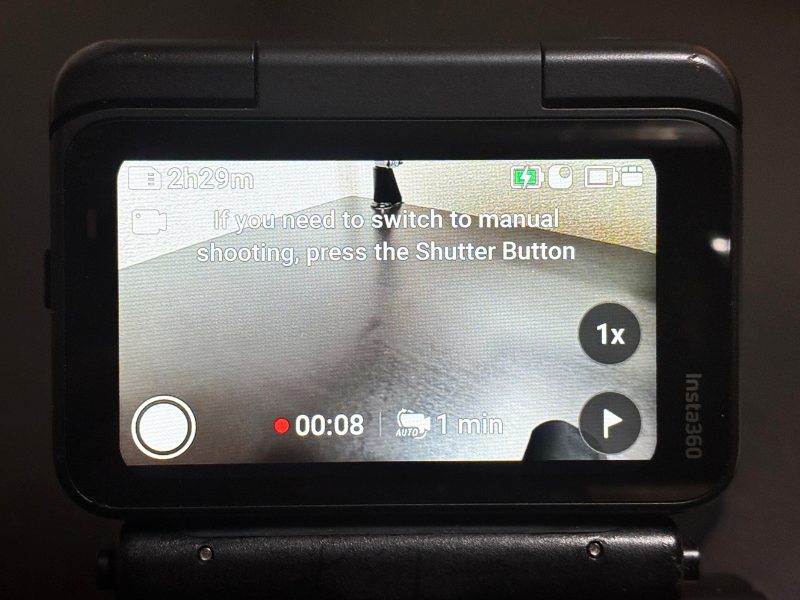
About 10 seconds before recording starts, the preview screen turns on and a notification appears. (You can disable the preview if you want.)↓
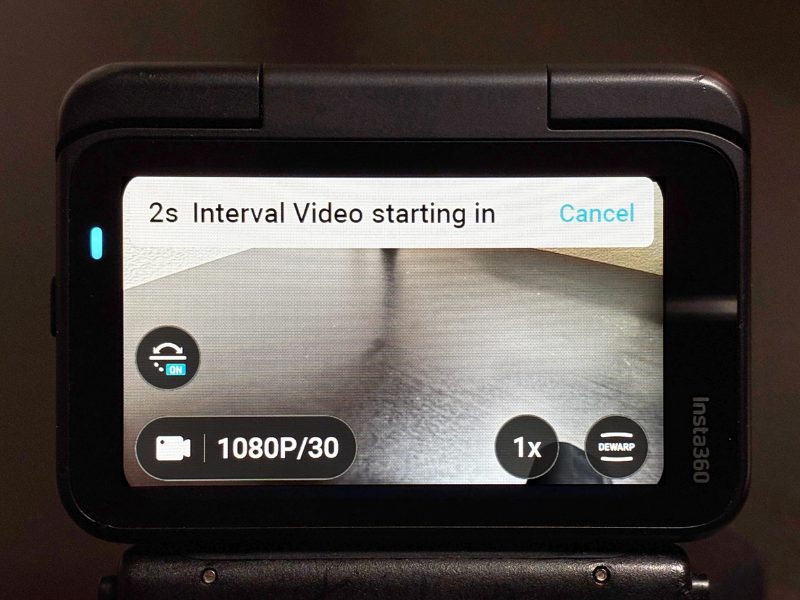
To stop interval recording, open the settings screen and tap “End Task.”↓
>>Insta360 GO Ultra Official Store
Summary of This Article
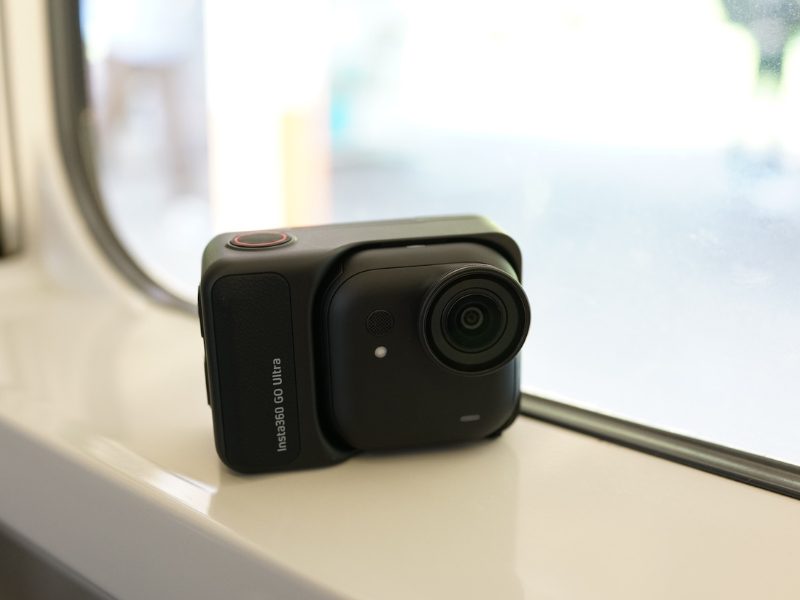
Insta360 GO Ultra’s interval video automatically captures footage at preset intervals.
Because the camera only powers on at the moment of recording and powers off afterward, it significantly reduces battery consumption.
This makes it possible to wear the camera all day without worrying about the battery dying.
If there’s a moment you want to capture, you can simply press the recording button on the camera to start recording instantly.
There’s no risk of missing important scenes.
For anyone who wants to naturally document the flow of their day without being distracted by filming, this feature is an excellent fit.
If you haven’t purchased the GO Ultra yet, check the official store below.